
How to use Peas of Mind
A short tour of each part of the app, for finding your feet.
Home
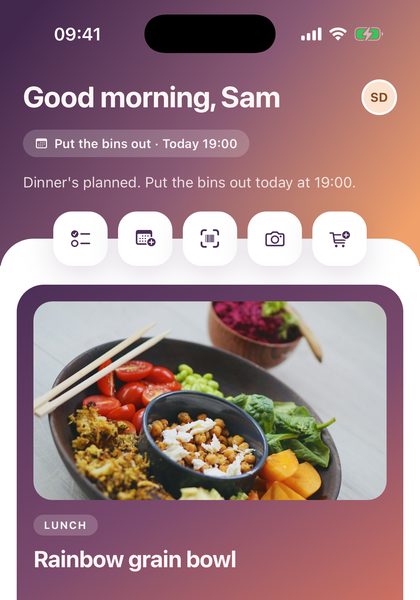
Your day at a glance
- The top shows the weather (if you turn it on) and what's coming up today.
- The big card is today's meals. Swipe it for the rest of the day, or choose something else for it in Settings › Home screen.
- What's coming lists your to-dos and the next plans. Tick things off right there.
- The round buttons under the header are shortcuts: add a recipe, snap a dish, leave a note for everyone.
Tip: Tap the faces at the top right to open Settings.
Planner
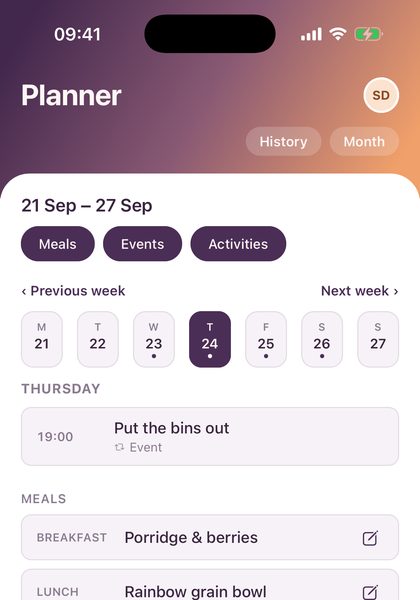
Meals and the family's plans, one week at a time
- Each day shows activities and events first, then breakfast, lunch and dinner.
- Tap + Add on a meal to pick one of your recipes, a quick meal or eating out.
- Add activities like swimming and events like birthdays, say who they are for, and repeat them weekly.
- Month shows the whole month at once. History shows what you ate over the last 90 days.
Tip: Connect the calendars on your phone in Settings › Planner & Calendars, birthdays included, and they show up here too.
Recipes
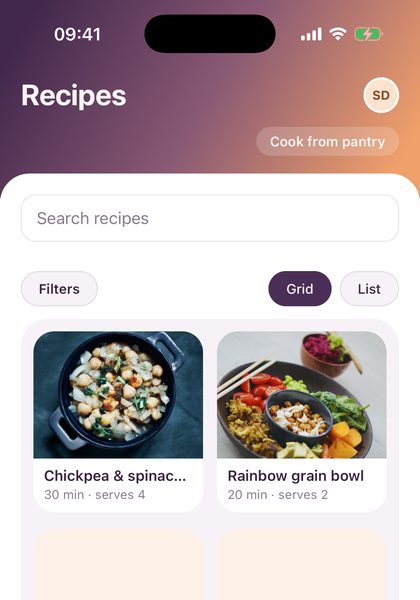
Your household's own cookbook
- Add a recipe by hand, or paste a link from a recipe website and it fills itself in.
- On a recipe you can change the servings, send the ingredients to Groceries, or put it on a day.
- Cook mode shows one step at a time, big, and keeps the screen awake.
- Cook from pantry shows what you can make with what's at home, even if a few things are missing.
Tip: Add a note to a recipe, like 'less chilli next time'. Everyone in the household sees it.
Groceries & Pantry
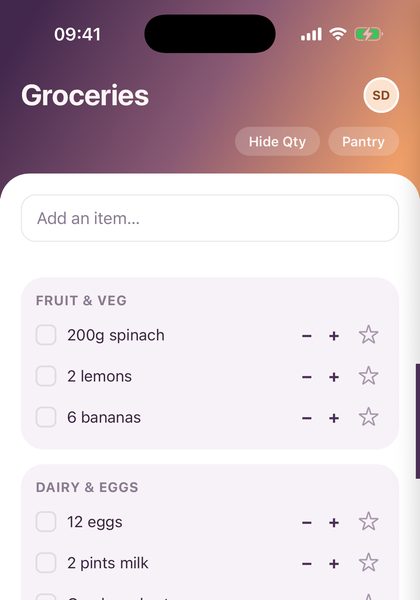
One shared list for the shop
- Type an item and it files itself under the right aisle.
- Tick things off as you shop. Tapped the wrong one? Tap it again straight away to undo.
- The Pantry is what's at home. Mark things running low and put them on the list in one tap.
- In the Pantry, scan a barcode to add a product without typing.
Tip: Changes show on everyone’s phone straight away, so you can split up in the shop.
To Do
Jobs, big and small
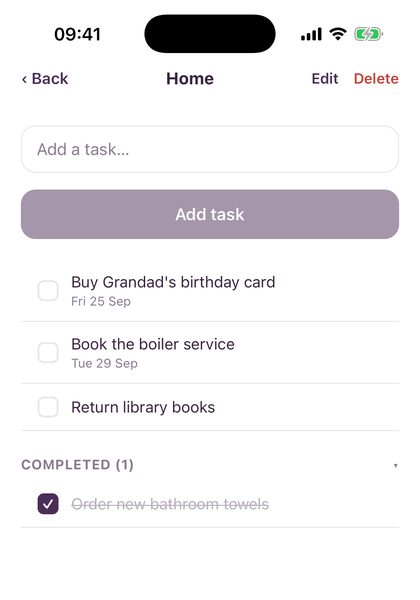
- Make lists, like Home or School, and add tasks with a due date and time if they need one.
- A list can be shared with everyone at home, or kept just for you.
- Tick the box to finish a task. Swipe a task to edit or delete it.
- Tasks that are due can send a reminder. Choose when in Settings › Notifications.
Tip: Tasks with a due date also show on Home, so nothing slips.
Settings & your household
Share it with the people you live with
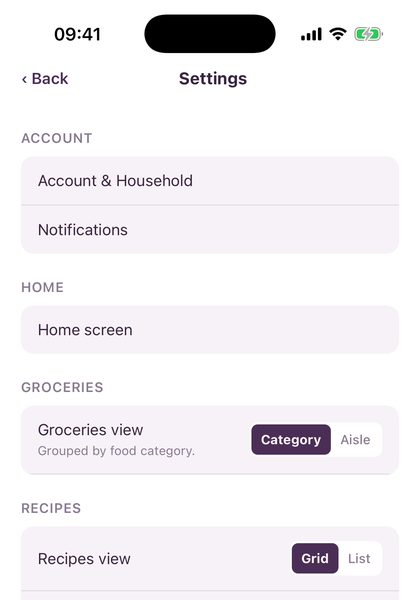
- Invite people in Settings › Account & Household. They join with your code and see everything you do.
- Home screen sets your name, what the big card shows, the shortcuts and the weather.
- Choose your notifications, units, and how each page looks.
- Export your data or delete your account under Data & privacy.
- Found a bug, or thought of something the app should do? Settings › Feedback.
Tip: Show hints again brings back the little tips if you've dismissed them.
Still stuck? Get in touch →